How do I send photos and files in a website chat?
Click the paperclip beside the reply box, pick up to 3 photos or files, then send. Visitors can send you files the same way, and anyone can download them.
In Conversations, open the website chat and click the paperclip beside the reply box. Pick up to 3 photos or files, then send. The visitor sees them right away in the chat on your website, and can send you photos and files the same way. Anyone in the chat can download them.
Also called: attachment, attach a file, send a picture, upload, image, PDF, pièce jointe, joindre un fichier, envoyer une photo, image, fichier
Step 1: Open the chat
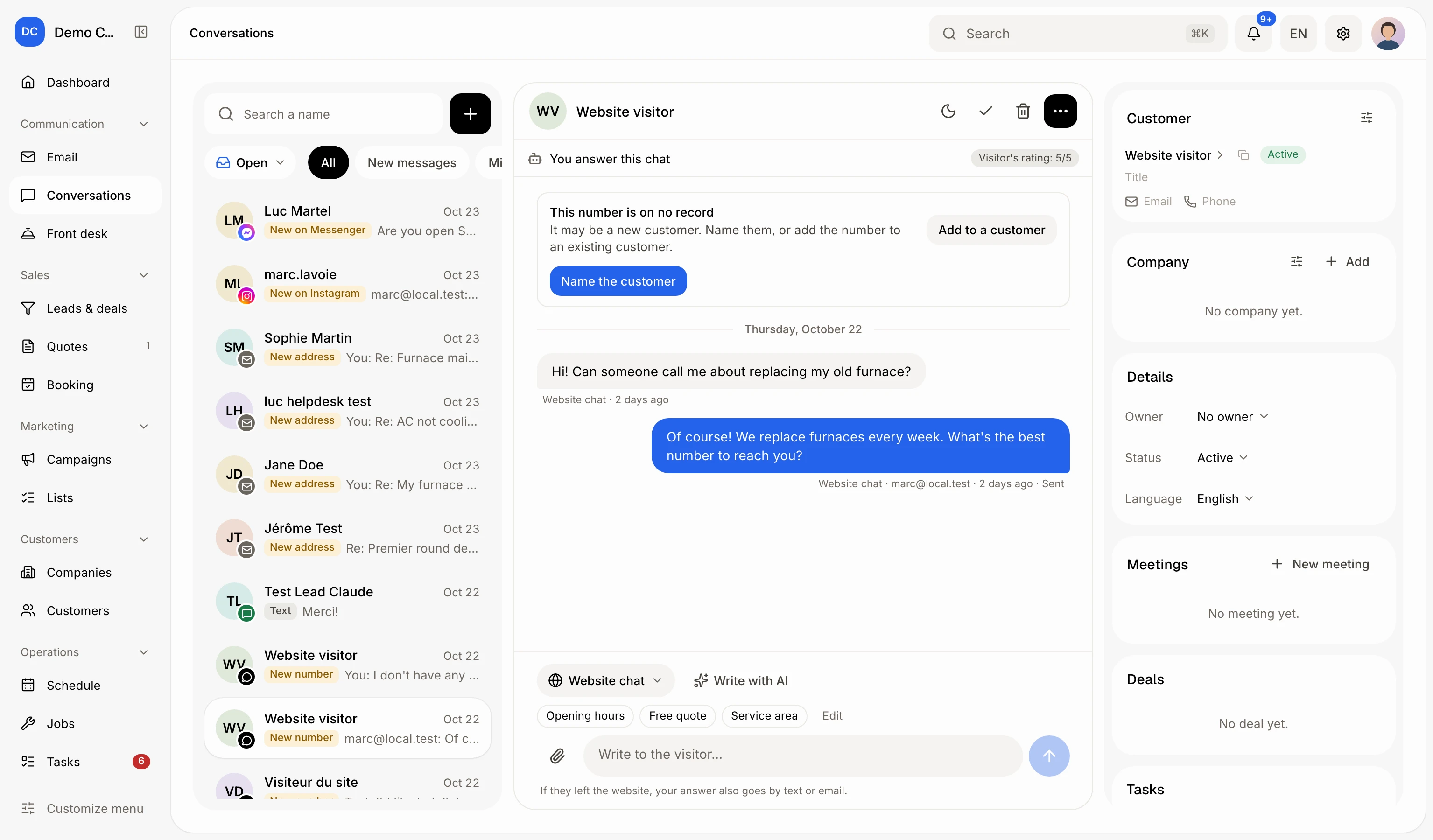
Click Conversations in the menu, then the visitor's chat.
Click: Conversations › the visitor's chat
Step 2: Pick your photos or files
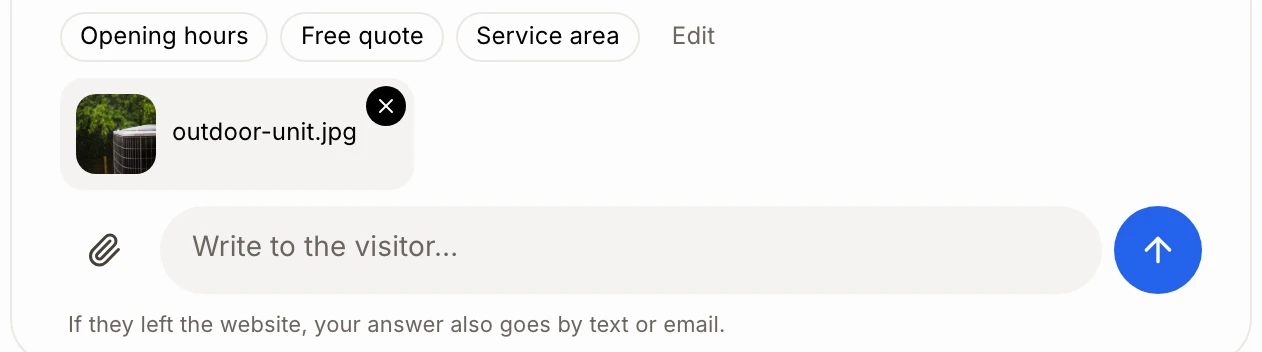
Click the paperclip (Attach a photo or file) on the left of the reply box and pick them on your computer. They show above the box. Click the small × on one to take it off.
You can send photos (JPG, PNG, WebP, GIF), PDF, Word, Excel, text and CSV files, up to 10 MB each and 3 per message.
Click: Conversations › Attach a photo or file
Step 3: Send
Add a few words if you like, then click the send arrow. Words are optional: you can send just the files.
If the visitor already left your website, your answer also goes to them by email with the files attached, or by text with a link to each file.

Step 4: Download what visitors send
Photos show right in the conversation. Click the download button on a photo, or click a file's name, to save it on your computer. Click a photo itself to open it full size in a new tab.

Visitors do the same in the chat on your website: the paperclip beside their message box sends a photo or file to you, and the download button saves yours on their device.
Send a photo with Ask Alori
Attach a photo to your message to Ask Alori and ask it to send it to the visitor's chat, for example "Send this photo to Dana in the chat". Alori shows you the reply first; it goes once you confirm.
If it doesn't work
Attach a photo, PDF, Word, Excel or text file, up to 10 MB. The file is another kind, or too big. Save it as a PDF or a smaller photo and try again.
Up to 3 files per message. Send the rest in a second message.
These files are too big together. Send fewer. All the files of one message must stay under 18 MB together.
The file didn't upload. Try again. Check your connection and send again.
A visitor doesn't see the paperclip: your website shows the chat from an older version of your app. Publish your app again to update it.