How do I put my team in teams?
Open Users › Teams, click New team, name it and add its people. A role set to Their team's then sees that team's records.
Open Users, click the Teams tab, click New team, give it a name and add its people. Every change saves right away.
Also called: teams, groups, sales teams, branches, équipes, groupes
A team groups people who work together, like East sales or Installers. A person can be on more than one team. Teams matter when a role is set to Their team's (see How do I choose what each role can do?): people with that role see the customers, companies and deals owned by anyone on one of their teams. Someone on no team sees only their own.
Step 1: Open the Teams tab and make a team
Open your account menu, click Users, then Teams at the top. Click New team.
Click: Users › Teams › New team
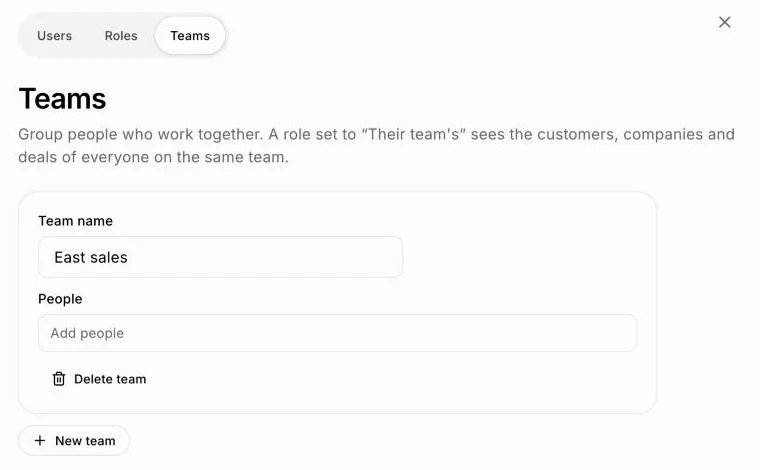
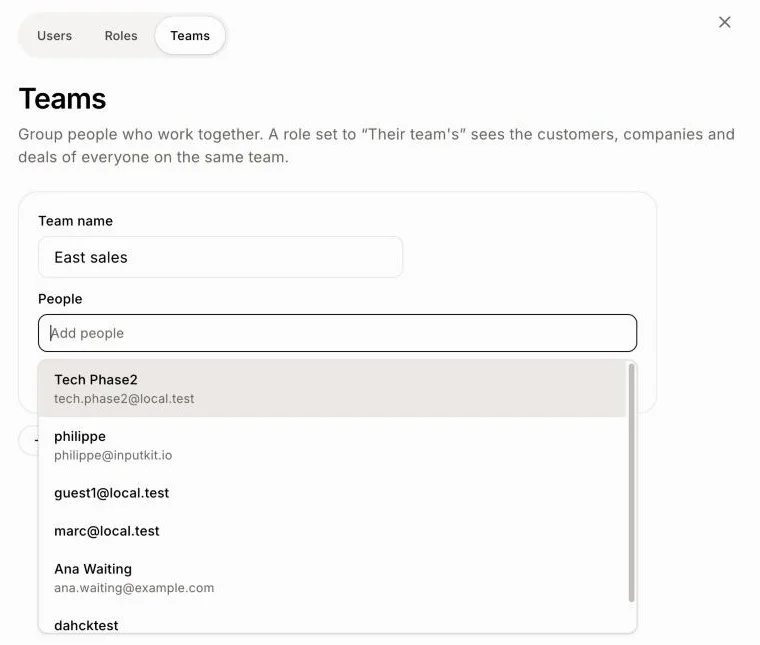
Step 2: Name it and add its people
Type the name in Team name. Click Add people and pick each person from the list. To take someone off, click the × on their name.
Click: Team name › Add people › a person
Delete a team
Click Delete team, then Delete. Its people stay, on their other teams.
If it doesn't work
"Your app gets teams the next time it is published. Try again after that." Your app runs an older version. Publish your app once, then try again.
"Give the team a name." The name can't be empty.
"You've reached the limit of 50 teams." Delete a team you don't use.
"We couldn't save that. Try again." Check your connection and try again.