How do I choose what each role can do?
Open Users › Roles, pick a role, then set each module to None, View or Edit and flip the rules. Every change saves at once.
Open Users, click the Roles tab, pick a role on the left, then choose what it can see and change on the right. Every change saves right away and applies to everyone who has that role.
Also called: permissions, access, access levels, rôles, permissions, accès
Every app starts with these roles: Admin, Office, Sales rep, Technician and No access (in French: Administrateur, Bureau, Représentant, Technicien, Aucun accès). You can rename them, change them, or make your own.
Step 1: Open the Roles tab
Open your account menu, click Users, then click Roles at the top. Your roles are listed on the left, highest first, with how many people have each one.
Click: Users › Roles
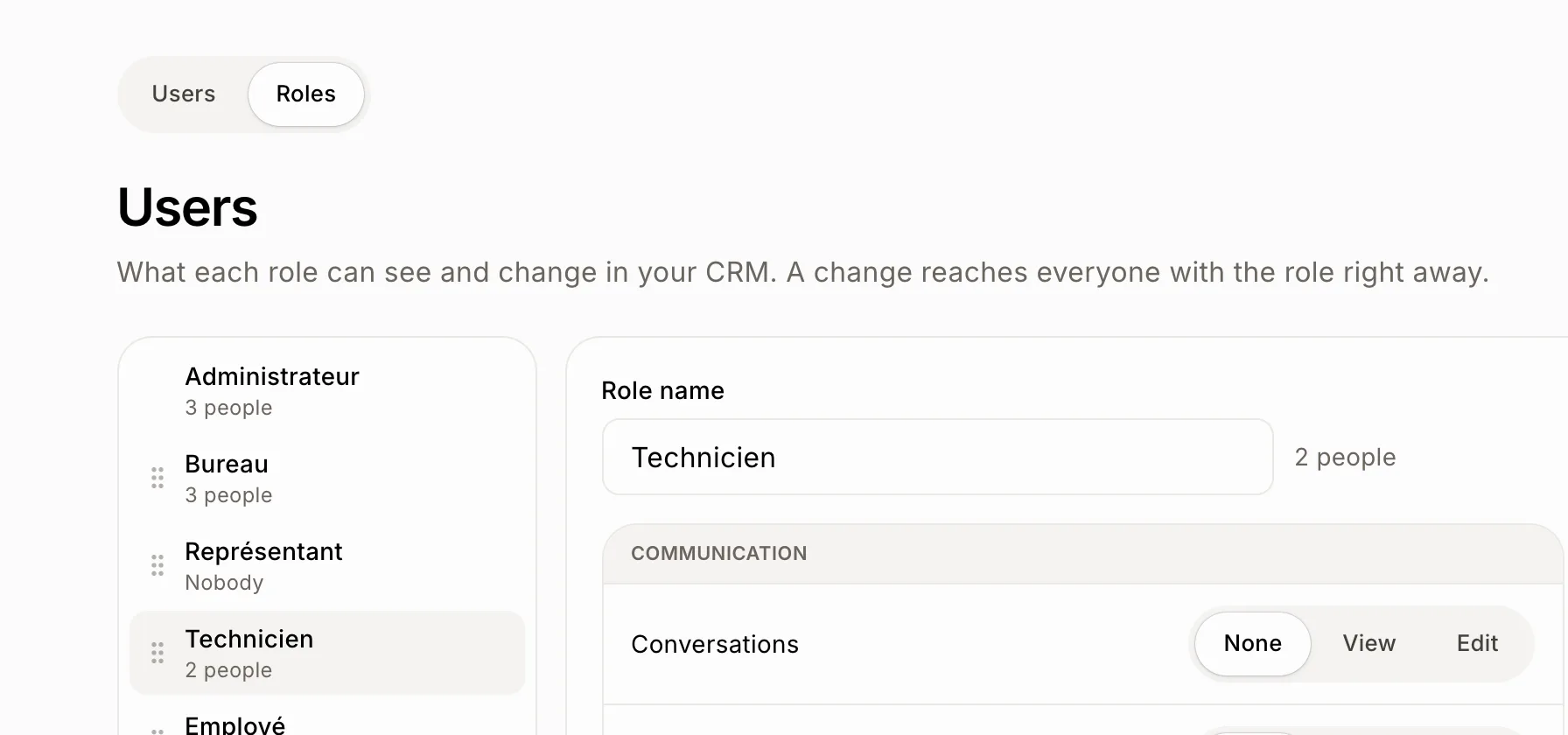
Step 2: Pick a role and set each module
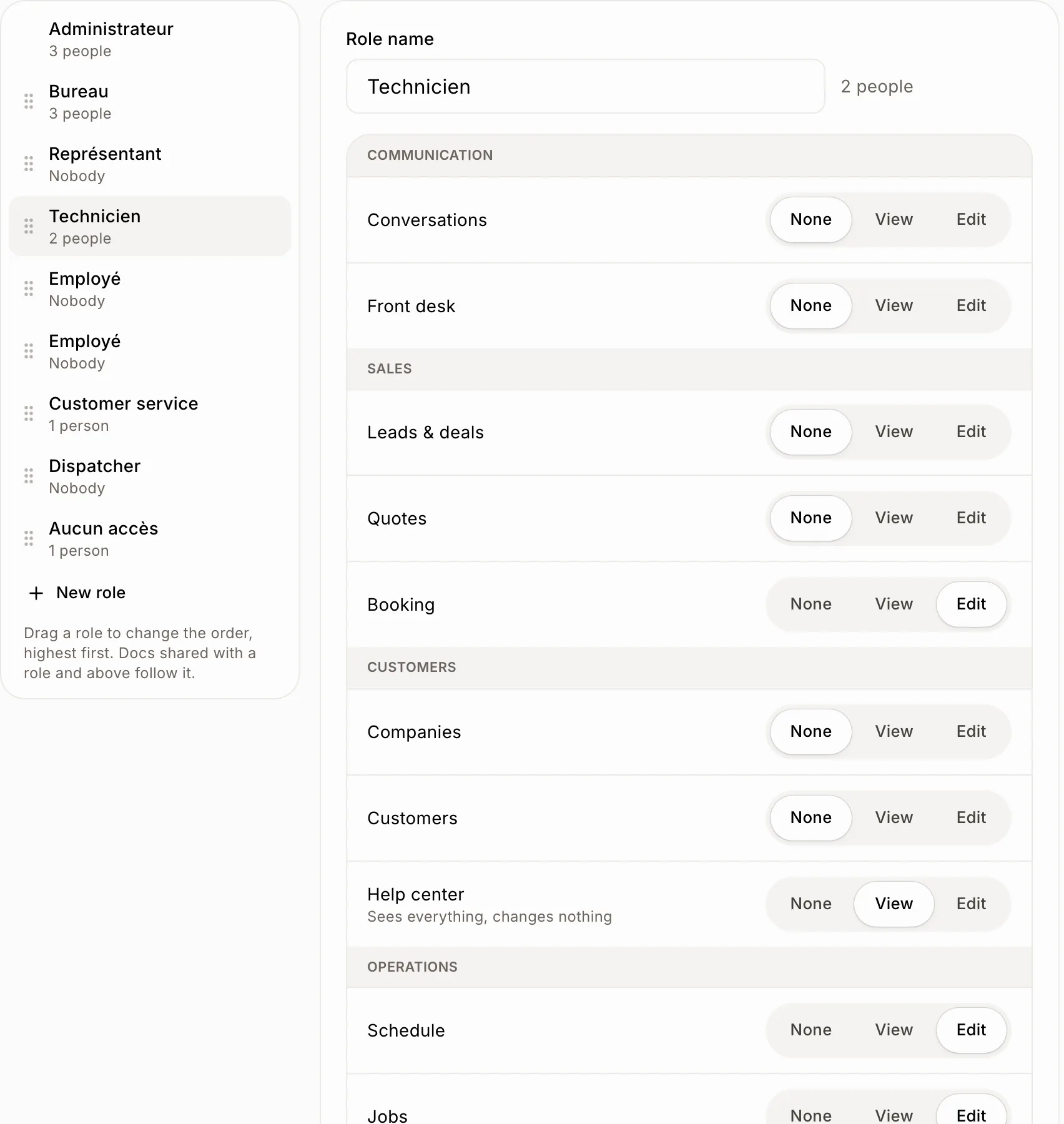
Click a role. For each module of your CRM, pick None (they don't see it), View (they see everything, change nothing) or Edit. Modules are grouped like your menu: Communication, Sales, Customers, Operations, Money, Team.
To rename the role, type in Role name. Admin can do everything, so only its name changes.
Click: a role › None, View or Edit
Step 3: Set the rules
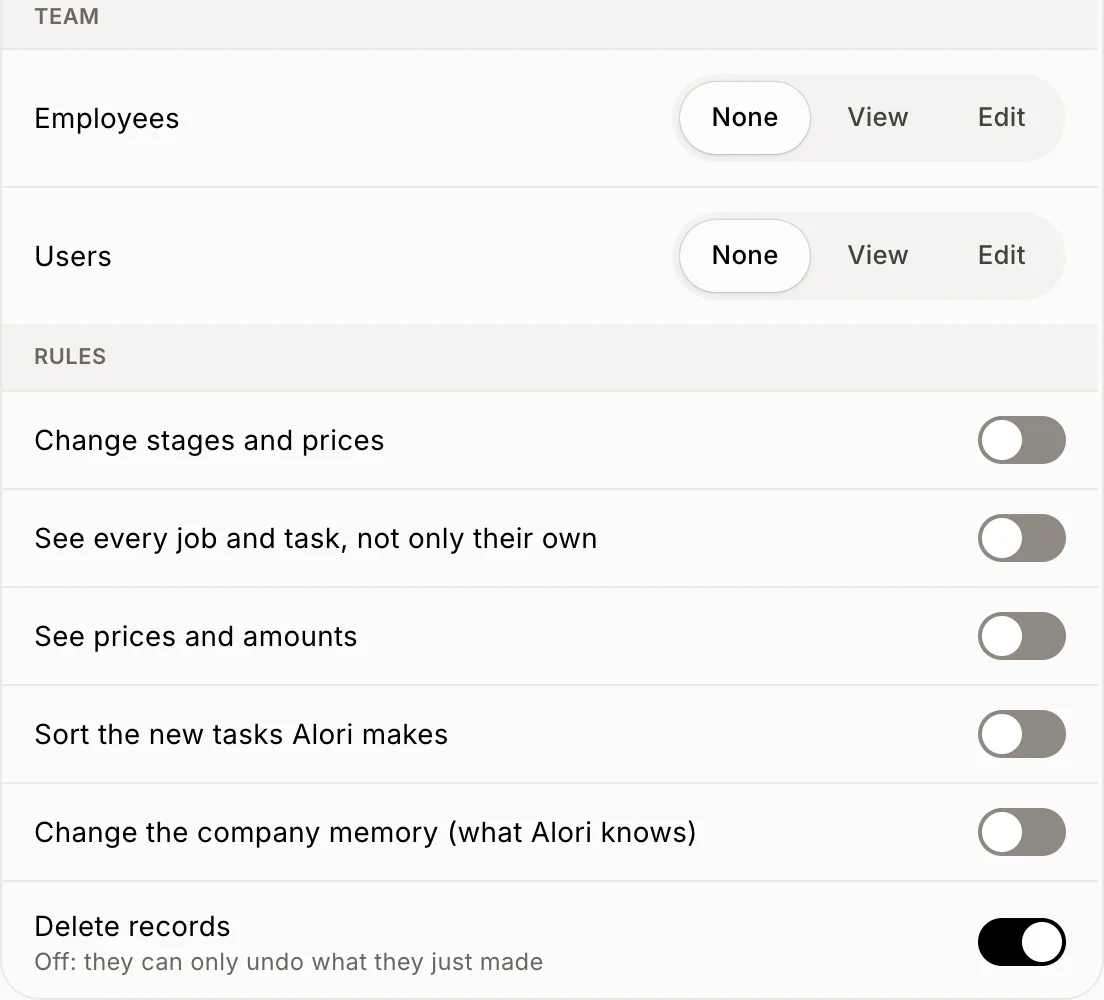
Under Rules, turn on what this role may also do:
Change stages and prices
See every job and task, not only their own
See prices and amounts
Sort the new tasks Alori makes
Change the company memory (what Alori knows)
Delete records. Off: they can only undo what they just made.
Click: Rules › the switch
Make a role, change the order or delete one
New role: click New role under the list. It starts with no access; set what it needs.
Order: drag a role up or down the list. Admin stays on top. Docs shared with "a role and above" follow this order.
Delete: open the role and click Delete role, then Delete. People who had it move to No access.
To give someone a role, go back to the Users tab and pick it next to their name.
If it doesn't work
"Your app updates its roles the next time it is published." Your app runs an older version. Publish your app once, then try again.
"You've reached the limit of 20 roles." Delete a role you don't use.
"Your team needs at least one role." The last role can't be deleted.
"We couldn't save that. Try again." Check your connection and try again.