What does an employee see?
With the Employee role, a person sees only their own employee page, as their Dashboard. Every team has this role, and new people get it unless you pick another.
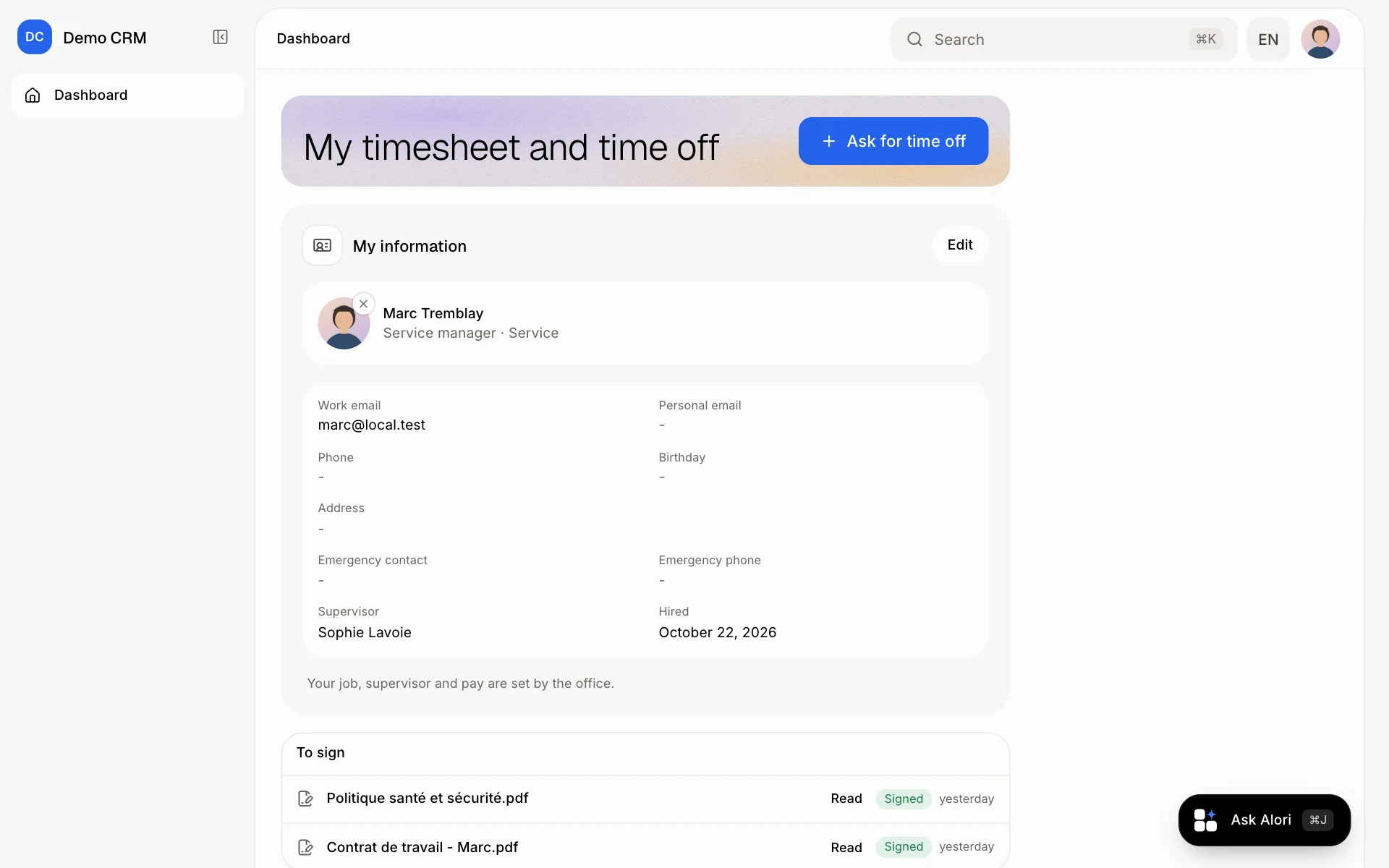
Someone with the Employee role sees one page: their own. It opens as their Dashboard, with their information, documents to sign, hours and time off. They see no customers, jobs, prices or anything else of the business.
Also called: employee role, employee access, limited access, default role, rôle employé, accès employé, accès limité, rôle par défaut
Step 1: Give someone the Employee role
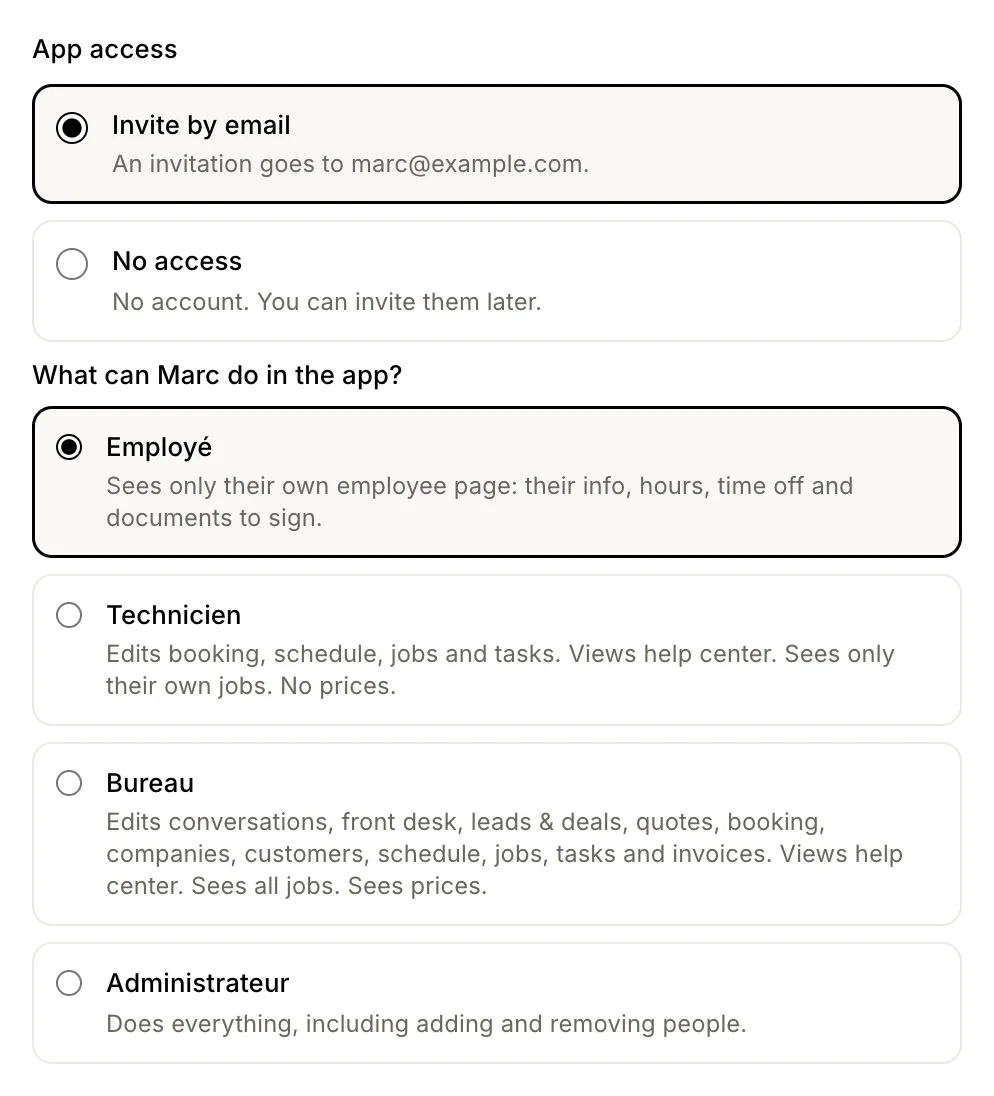
Every team has an Employee role. When you add an employee and choose Invite by email, Employee is already picked under "What can … do in the app?". Leave it unless they need more. When you add someone from Users, it is picked there too.
Click: Employees › Add an employee › Invite by email
Step 2: What they see once signed in
The menu shows only Dashboard. Their Dashboard is their employee page: My information (they can update their own details with Edit), To sign, Clock in and their hours, and Ask for time off. Any other address in the app brings them back here.
Good to know
Need them to see their jobs too? Give them Technician in Users, or a role you made with more access.
You can change their role any time in Users; they get the change at once.
Everyone on the team has a role. Teammates who had none are on Employee, and deleting a role moves its people to Employee too. Give them back more in Users.
They don't see pay rates. Their job, supervisor and pay are set by the office.
If it doesn't work
They see "You don't have an employee file yet." Their login isn't linked to an employee. Add them from Employees with the same work email, or invite them from their file.
They see more than their page. Their role opens a module. Check it in Users › Roles.