How do I onboard a new employee?
Add the person; their file starts a First day list by itself. Tick steps as you go. When they leave, a Last day list starts the same way.
Add the person under Employees. Their file starts a First day list by itself: contract, tax forms, payroll details, app invite, cards, equipment and safety training. Tick each step as you go. When they leave, a Last day list starts the same way.
Also called: onboarding, offboarding, new hire checklist, first day, last day, accueil, intégration, embauche, départ, liste de vérification
Step 1: Add the person
Go to Employees and click Add an employee. Fill in their name and click through the steps.
Click: Employees › Add an employee
Step 2: Follow the First day list
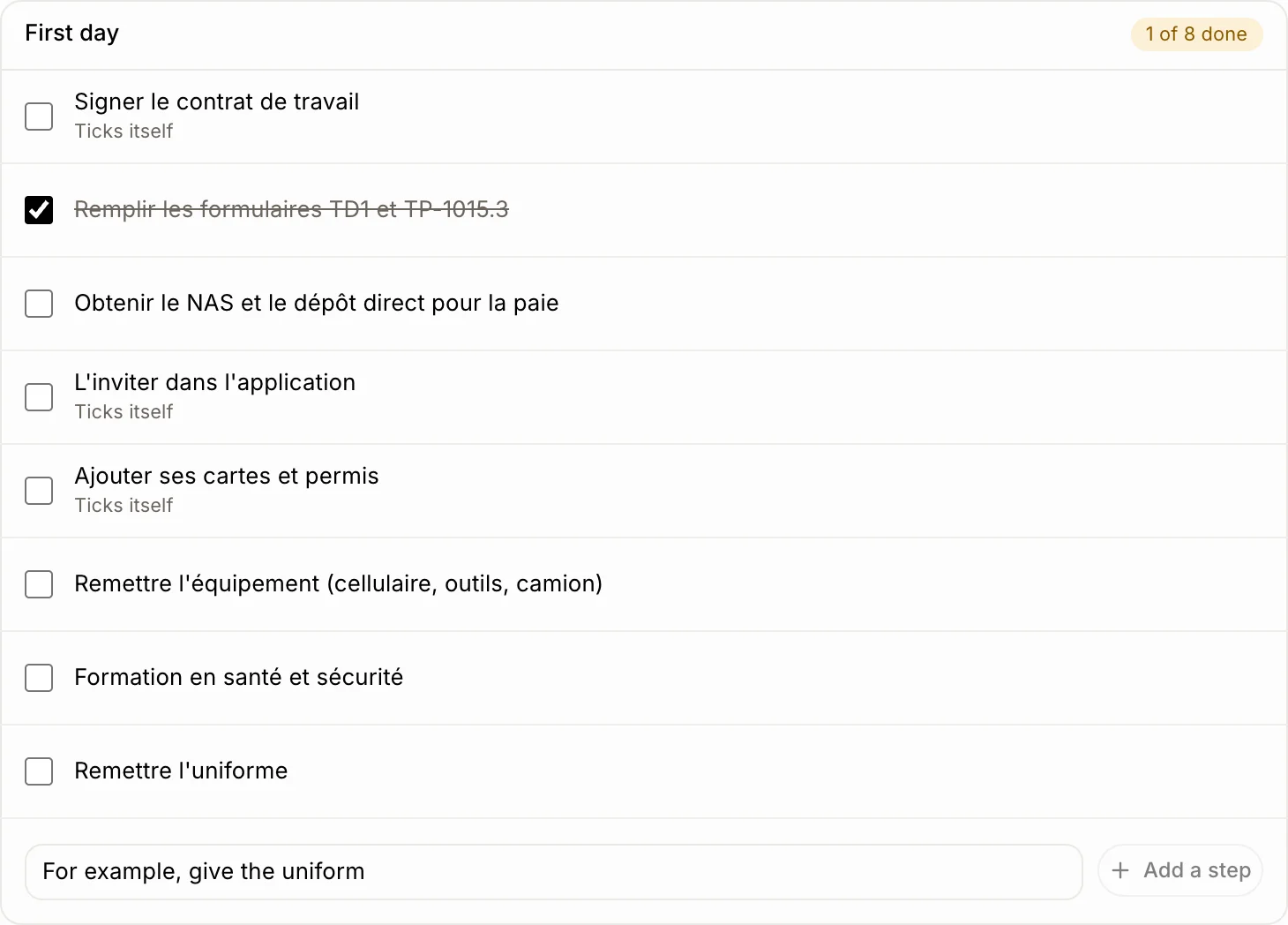
Open their file. First day shows each step and how many are done. Tick a step when it's done. Steps marked Ticks itself check off on their own: the contract once they sign it in the app, the invite once they sign in, and the cards once you add one. Add your own step at the bottom with Add a step. Hover a step to remove it (with Undo).
Step 3: The Last day list
When the person leaves, click Mark as left on their file. A Last day list starts: get the equipment back, last pay with vacation pay, the Record of Employment (ROE), remove their app access and delete their identity papers. The last two tick themselves.
Click: the person › Mark as left
Good to know
Once every step is done, the list folds to one line, All done. Click Show the steps to see it again.
The steps start in your app's language.
You can ask Ask Alori: "What's left on Julie's first day?" or "Tick the tax forms for Julie."
If it doesn't work
You don't see First day. The list starts by itself for people added from now on, and for anyone who leaves.
A Ticks itself step stays unticked. Check what it waits for: a signed contract, a login, a card.