How do I get an employee to sign a document?
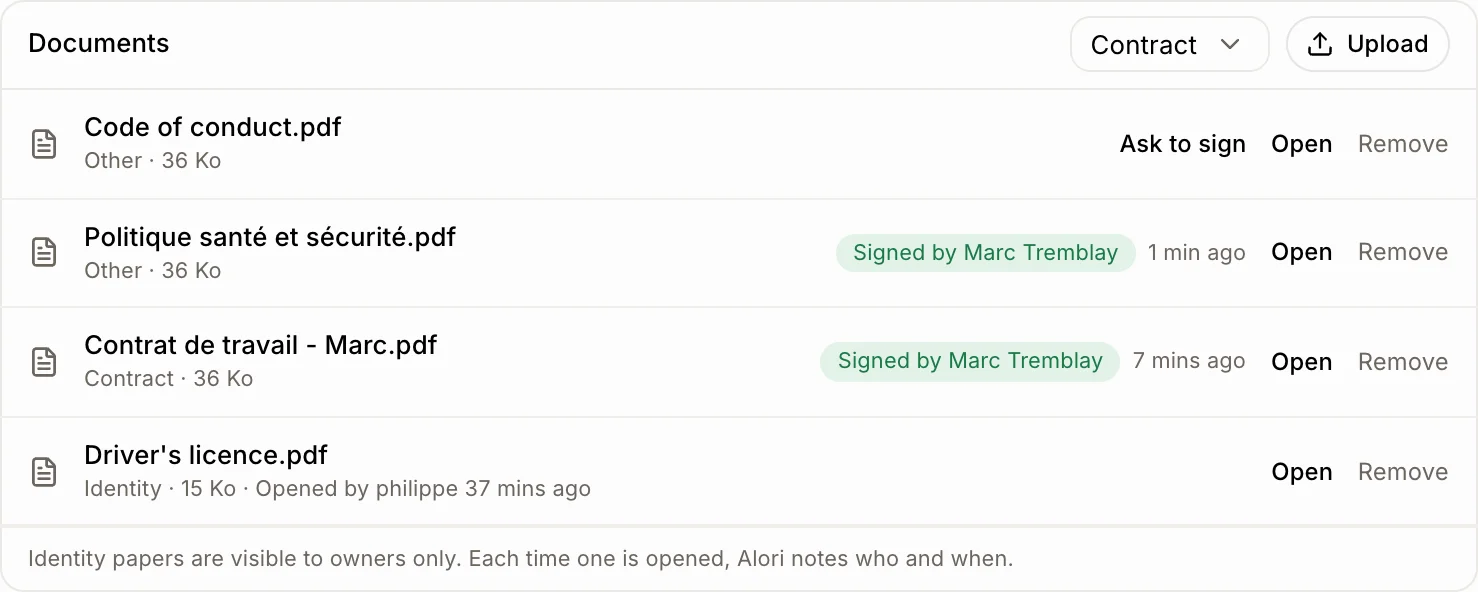
Upload the document on their file and click Ask to sign. They sign it in the app with their finger, and you see Signed by with the date.
Upload the document (a contract, a policy) on the employee's file, then click Ask to sign. They get a notification, read it and sign it in the app with their finger or their mouse. You then see Signed by their name, with the date.
Also called: e-signature, electronic signature, sign a contract, signature électronique, faire signer, contrat de travail, politique
Step 1: Ask them to sign
Open the person under Employees. In Documents, upload the file, then click Ask to sign next to it. It shows Waiting for signature until they sign. Ask again sends a new request.
Click: the person › Documents › Upload › Ask to sign
Step 2: The employee signs
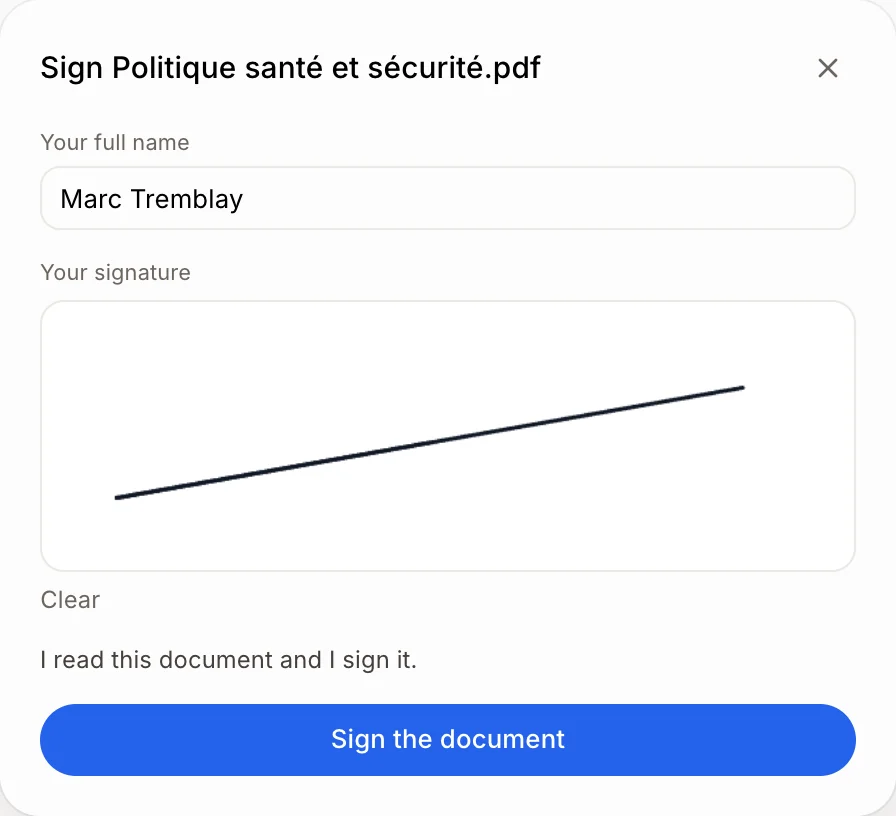
The employee sees To sign on their page in the app. They click Read to open the document, then Sign. Their name is already filled in. They sign in the box and click Sign the document.
Step 3: See the signature
Back on their file, the document shows Signed by their name and when. Click it to see the signature. You also get a notification.
Good to know
The person needs to sign in to the app to sign. Invite them first: it's a step of their First day list.
A signed contract ticks Sign the employment contract on their First day list by itself.
Identity papers are never sent to sign.
You can ask Ask Alori: "Send Marc his contract to sign."
If it doesn't work
"… needs to be invited to the app to sign." Invite them to the app, then click Ask to sign again.
"You already signed this document." It's signed. To get a new signature, click Ask again.
"The signature didn't come through. Clear it and sign again." Click Clear and sign again.