How do I bring my Slack channels and messages into Team chat?
In Import data, open Slack, connect it, click Import my channels, then choose Slack's export file to bring the messages.
In Import data, click Import on Slack and connect Slack. Click Import my channels to copy your channels, their topics and their people into Team chat. Then choose Slack's export file to bring their messages too.
Also called: move from Slack, Slack import, Slack export, copy Slack channels, switch from Slack, importer Slack, exportation Slack, canaux Slack, quitter Slack
Step 1: Open Slack in Import data
Open Import data, tap Team chat and click Import on Slack. Click Connect Slack and allow Alori. Alori only reads Slack: nothing changes there.
Click: Import data › Team chat › Slack › Import › Connect Slack

Step 2: Import your channels
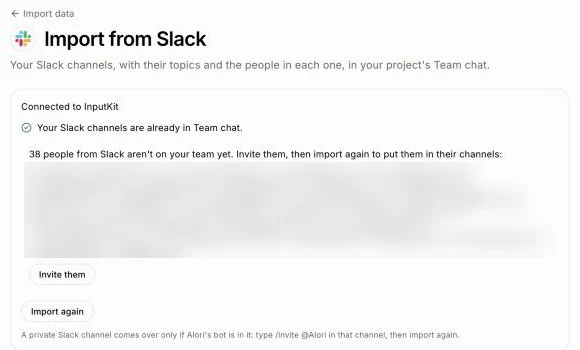
Click Import my channels. Every public Slack channel comes over, plus the private ones Alori's Slack bot was invited to, with their topics. Teammates are put in the channels they're in on Slack, matched by email. People from Slack who aren't on your team yet are listed: click Invite them, then Import again to put them in their channels.
Click: Import my channels
Step 3: Start Slack's export
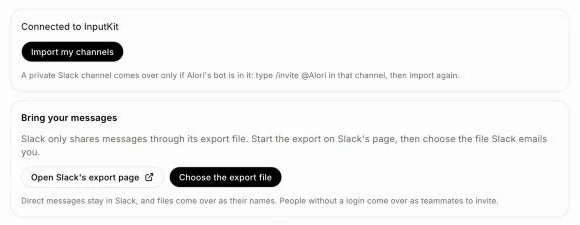
Slack only shares messages through its export file. Click Open Slack's export page: it opens Slack's own page in a new tab. Start the export there. Slack emails you when the file is ready; download it.
Click: Open Slack's export page
Step 4: Choose the export file
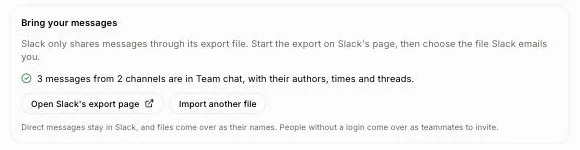
Back in Alori, click Choose the export file and pick the .zip file from Slack. Keep the page open while the count goes up: each message comes over with its author, its date and its thread. Someone without a login here comes over as a teammate to invite.
Click: Choose the export file
Good to know
Importing again is safe: channels you have keep everything, and messages already brought over aren't copied twice.
A private Slack channel comes over only if Alori's Slack bot is in it. In Slack, type
/invite @Aloriin that channel, then import again.Direct messages stay in Slack, and files come over as their names.
If it doesn't work
"Slack refused Alori. Connect Slack again." The connection stopped. Click Connect Slack and allow Alori.
"This file isn't a Slack export. Choose the .zip file Slack sent you." Pick the .zip file from Slack's email, not a folder.
"Slack is busy. Try again in a minute." Click Import again a minute later.
"Your app isn't online yet. Publish it once, then import again." Publish your project, then come back.