How can employees update their own information?
On their own Employees page, under My information, they click Edit and change their phone, emails, address, birthday and emergency contact.
Employees open Employees in their app. Under My information, they click Edit and change their phone, personal email, address, birthday and emergency contact, then click Save. Their job, supervisor and pay stay set by the office.
Also called: self-service, my profile, personal information, update address, mes informations, modifier mon adresse, contact d'urgence
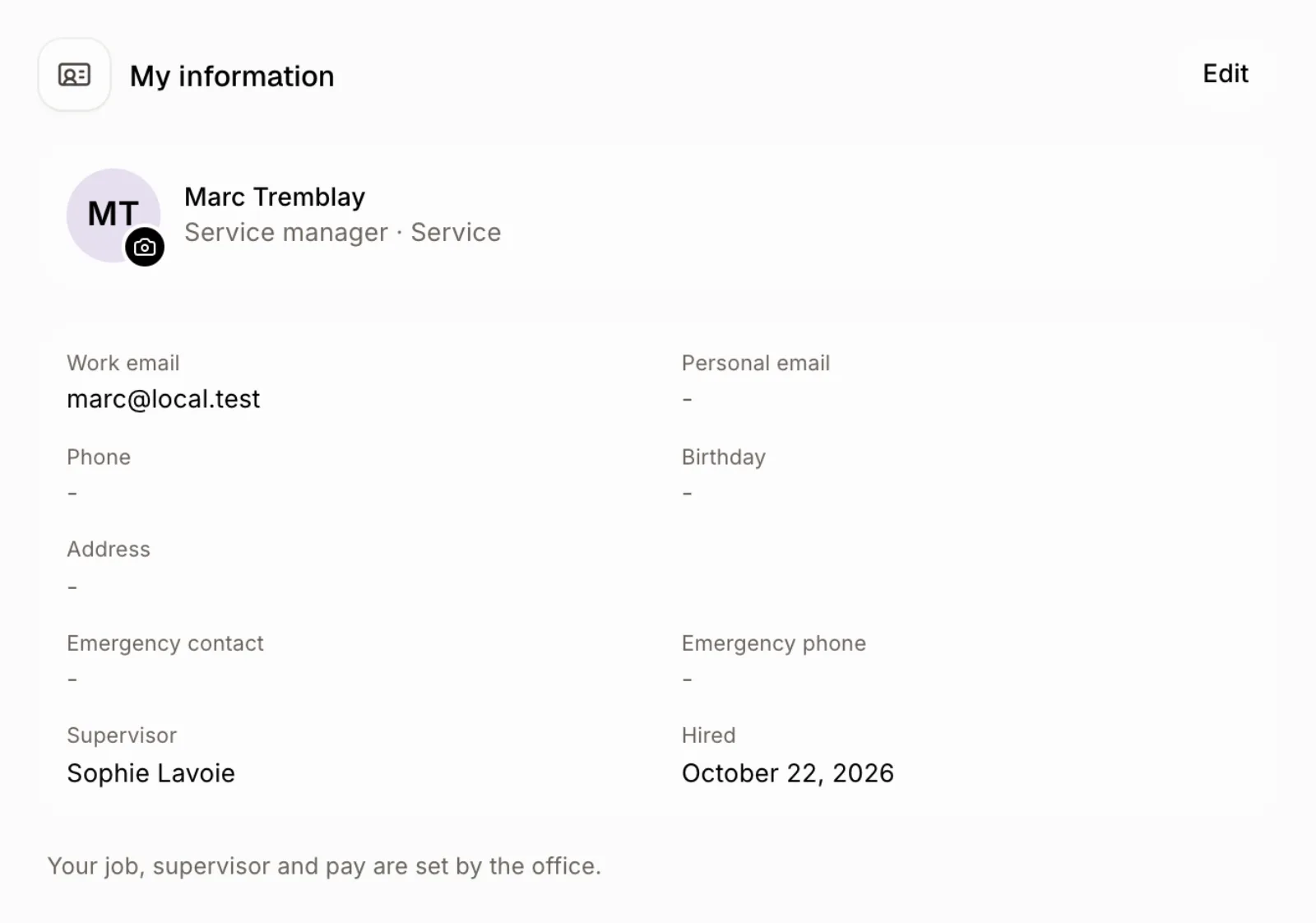
Step 1: Open My information
The employee signs in and clicks Employees. Their own page opens, with My information at the top: work email, personal email, phone, birthday, address, emergency contact, supervisor and hire date. Click the photo to add or change it.
Click: Employees › My information
Step 2: Edit and save
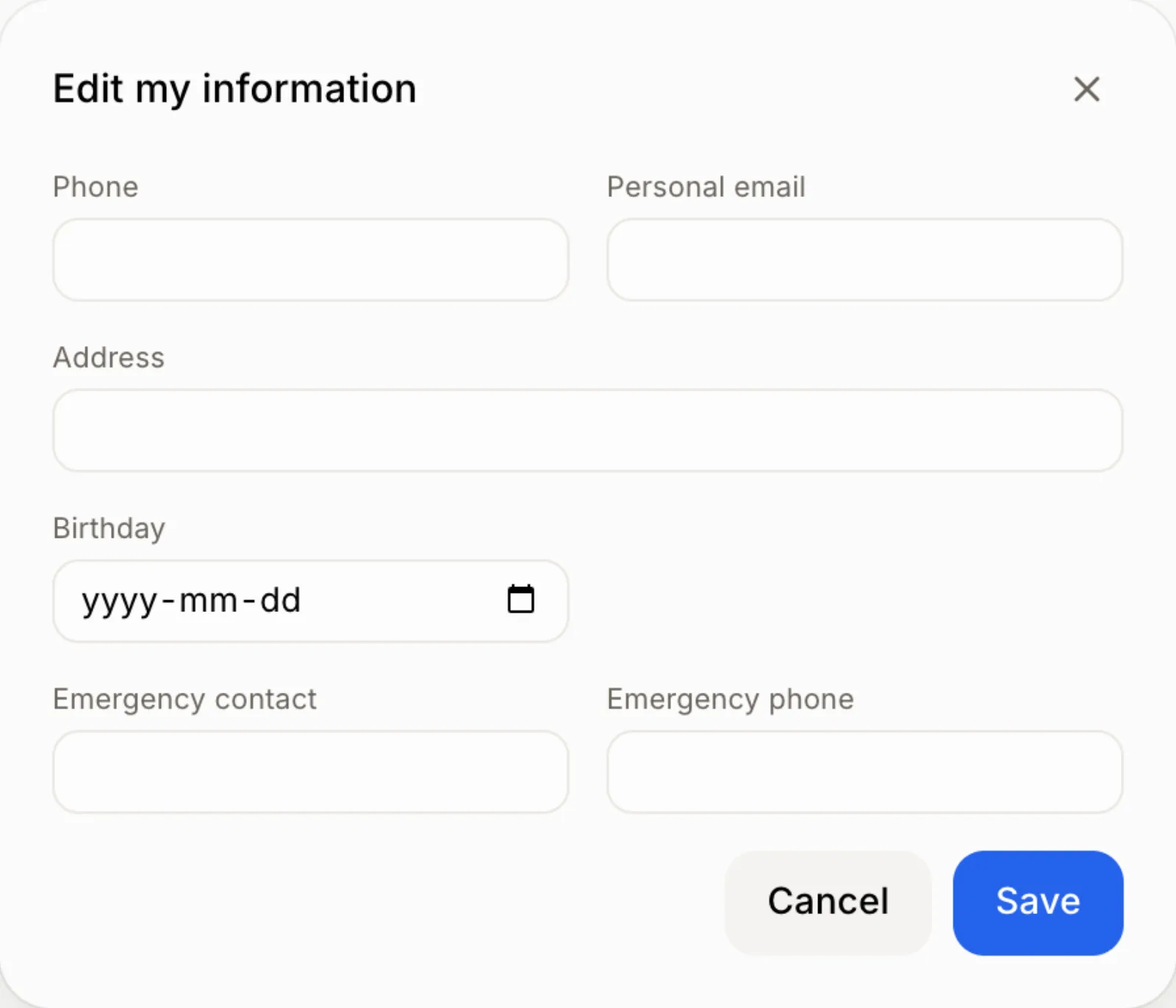
Click Edit, change what you need (the address suggests full addresses as you type) and click Save. Leave a field empty to clear it.
Click: My information › Edit › Save
Good to know
People who manage employees and also have their own file find this page under Employees › My space.
They can also ask Ask Alori: "Change my phone number to 514 555 1234."
If it doesn't work
"That email address doesn't look right." Check the personal email.
No My information. The person's login isn't linked to an employee file yet. Invite them from their file so the two link up.