How do I keep my help center up to date as I code?
Connect Claude Code to Alori and add one rule to your CLAUDE.md. Each time you ship a feature, Claude writes or updates its article, with screenshots.
Connect Claude Code to Alori, then add one rule to your project's CLAUDE.md. From then on, each time you build or change a feature, Claude writes its help article, takes a screenshot for each step, translates it, and publishes it in your help center. Your docs never fall behind your product.
Also called: docs as code, auto-update help center, knowledge base, documentation, changelog, MCP, Claude Code, documentation automatique, base de connaissances, centre d'aide à jour
Step 1: Connect Claude Code to Alori
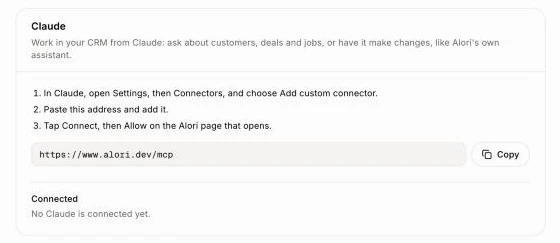
In Alori, click Settings and copy the address in the Claude card. In your terminal, add it to Claude Code:
claude mcp add --transport http alori https://www.alori.dev/mcpIn Claude Code, type /mcp, pick alori and sign in. An Alori page opens: click Allow.
Click: Settings › Claude › Copy
Step 2: Add the rule to your CLAUDE.md
Paste this in the CLAUDE.md at the root of your code. Claude reads it before every task.
## Keep the help center up to date

Our help center lives in Alori. When a change touches something customers see,
update its help article in the same change, with Alori's MCP:

- New feature: write an article with saveHelpArticle (published), with one
  screenshot per step uploaded with uploadHelpImage. Then translateHelpArticle.
- Changed feature: find it with helpArticles, update it with saveHelpArticle,
  retake the screenshots of the steps that changed, then translateHelpArticle
  with refresh: true.
- Removed feature: unpublish its article (saveHelpArticle with publish: false).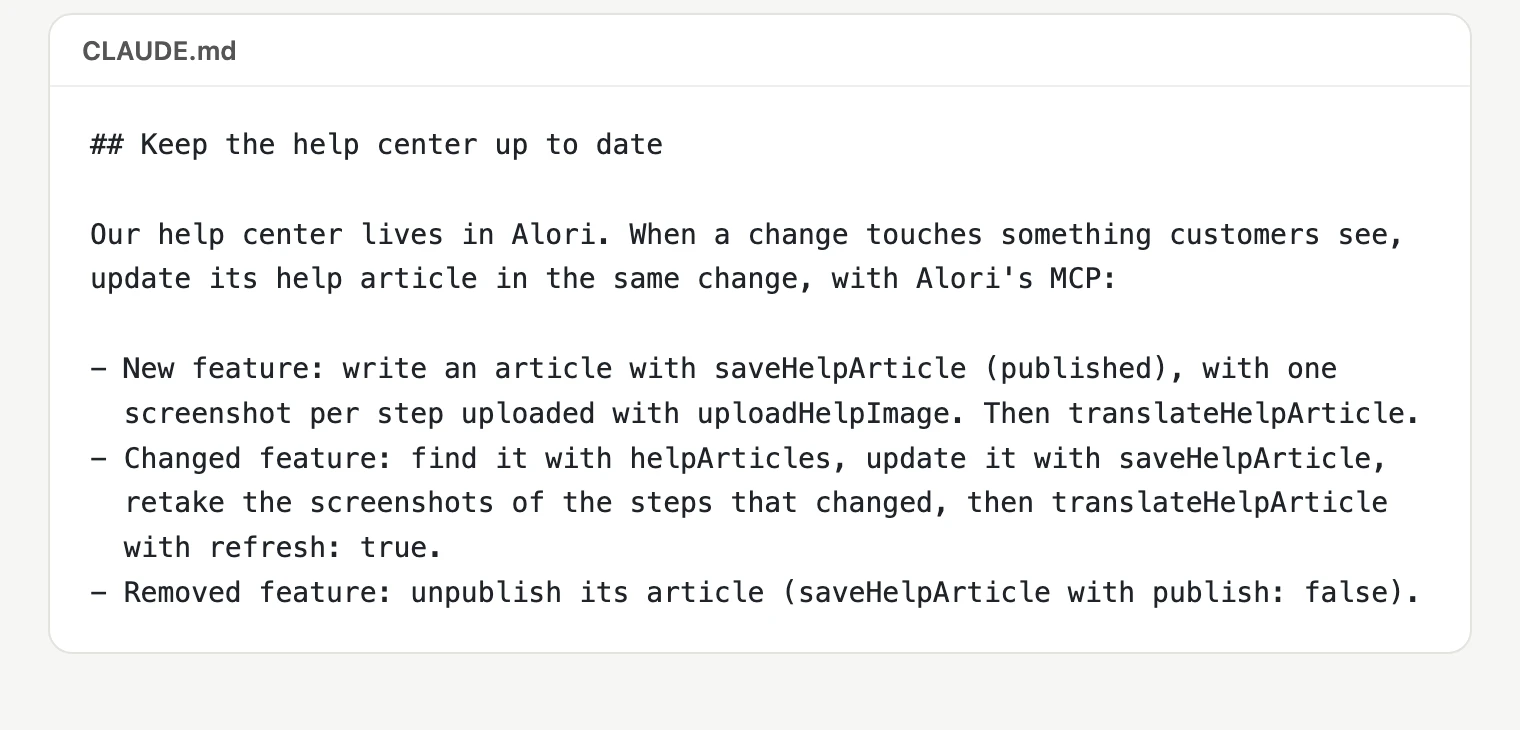
Step 3: Code as usual
Ask Claude Code for a feature, like you always do. When it's done, it opens your app, takes a screenshot of each step, uploads them, writes the article and publishes it, in English and French. Open your help center: the article is there. This very article was written that way.
Good to know
Your website chat learns it right away. The bot answers visitors from published articles, so it knows about a feature the day it ships.
Want to check first? Change "(published)" to "as a draft" in the rule. Drafts show only to your team, with a Publish button.
Works with any code: a web app, a mobile app, an API. Claude only needs to see what your customers see.
Keep a copy in your repo if you like: ask Claude to save each article as a .md file too, so a code review shows the docs change next to the code.
If it doesn't work
Claude doesn't update the article. Check that the rule is in the CLAUDE.md at the root of the project you opened, and that
/mcpshows alori as connected."Sign in to your Alori account to connect Claude." Sign in on that page, then click Allow.
"This link isn't complete. Start again from Claude." In Claude Code, type
/mcpand connect alori again.