How do I import my meetings from Fathom or Granola?
In Import data, open Fathom or Granola, follow the three steps to get your API key, paste it, then click Import meetings.
Open Import data, click Import on Fathom or Granola, follow the three steps to get your API key, paste it, then click Import meetings. Every meeting comes into Meetings on its date, with its title, guests and transcript (and its video from Fathom). Alori writes its own summary and next steps for each one.
Also called: Fathom import, Granola import, move from Fathom, move from Granola, note taker, meeting recordings, Fathom API key, Granola API key, importer Fathom, importer Granola, enregistrements de réunions, transcriptions
Step 1: Pick Fathom or Granola
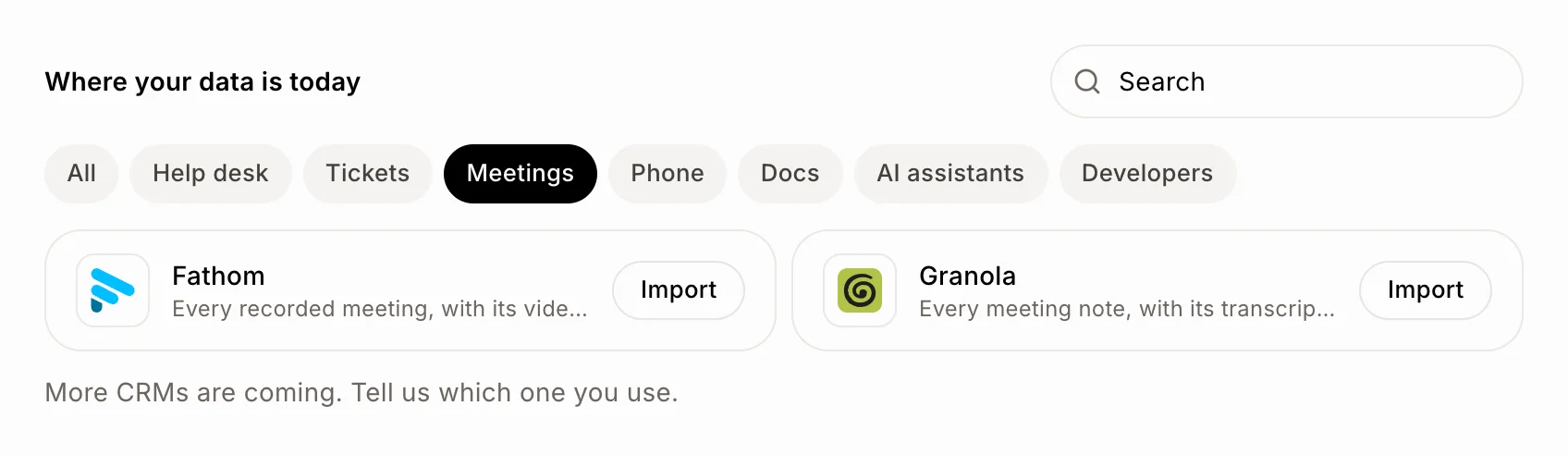
On Import data, find Fathom or Granola (click Meetings to see just them) and click Import. You can also start from your CRM: on Meetings, click ⋯ › Import from Fathom or Import from Granola.
Click: Import data › Fathom or Granola › Import
Step 2: Get your API key and paste it
The page walks you through it in three steps, then you paste the key in API key and click Import meetings.
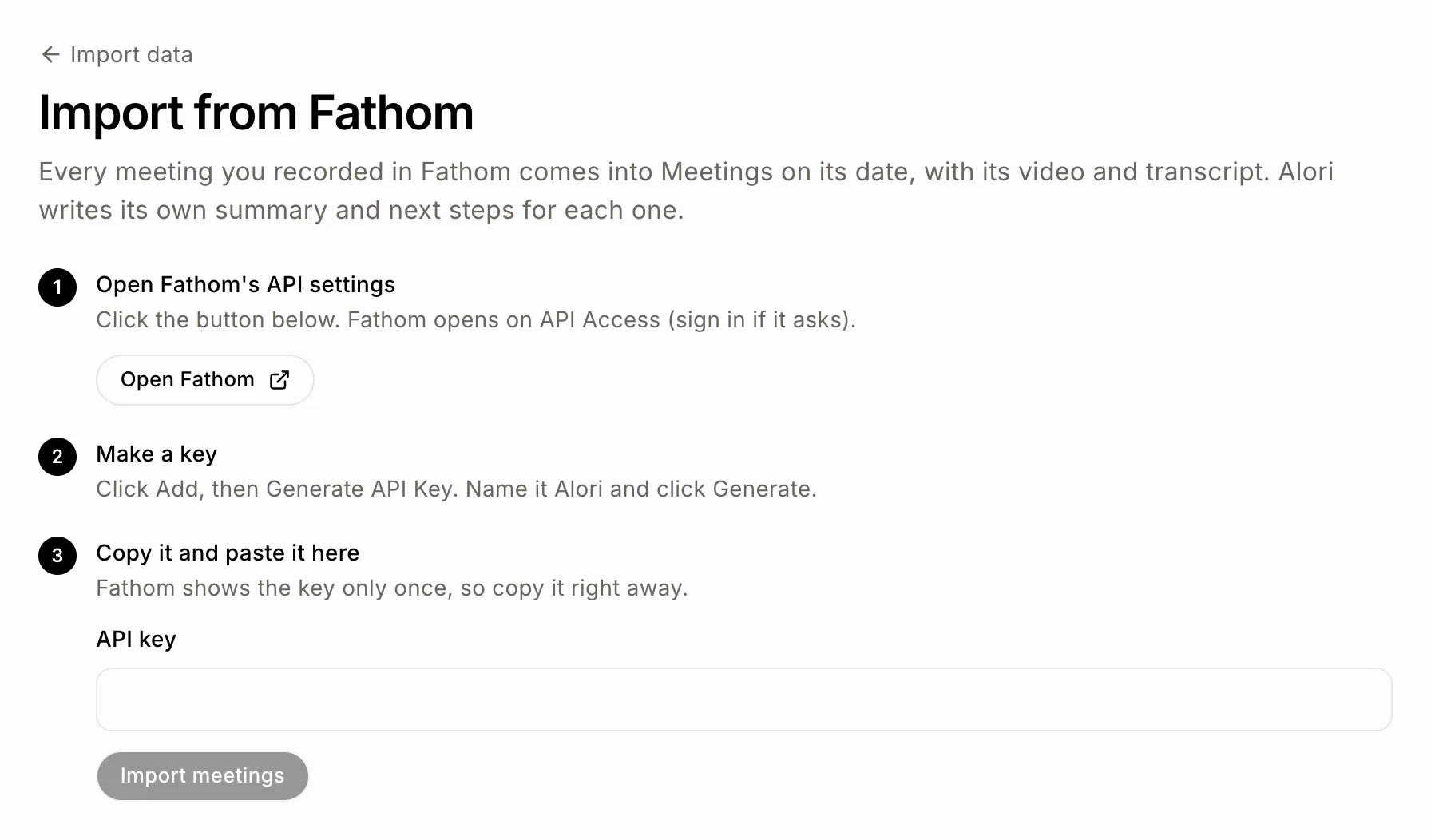
Fathom:
Click Open Fathom API settings. Fathom opens right on API Access (sign in if it asks).
Click Add, then Generate API Key. Name it Alori and click Generate.
Copy the key right away (Fathom shows it only once) and paste it in API key.
Granola:
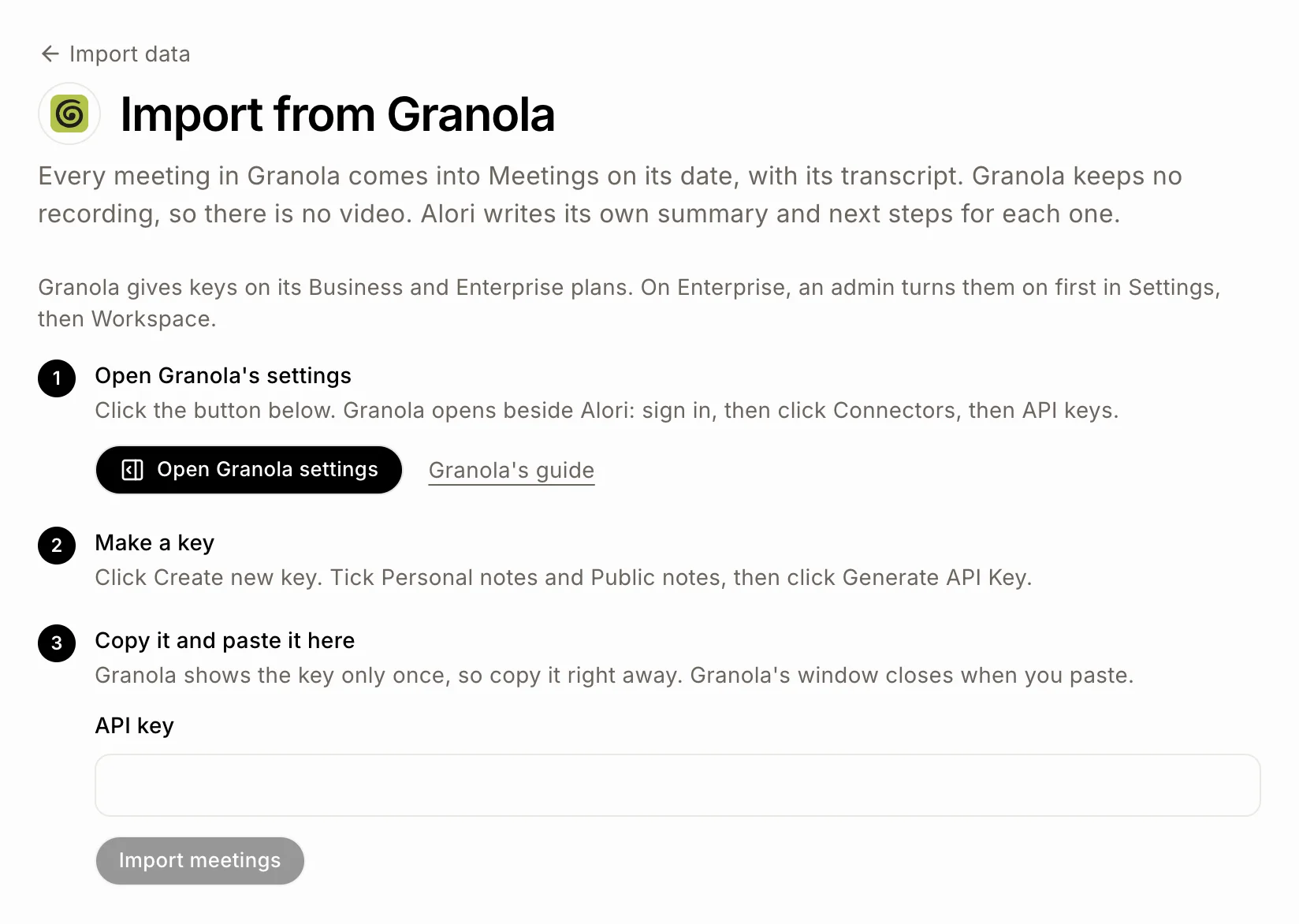
Click Open Granola settings and sign in. Then click Connectors, then API keys. In the Granola app on your computer, it's Settings › Connectors › API keys.
Click Create new key. Tick Personal notes and Public notes, then click Generate API Key.
Copy the key right away (Granola shows it only once) and paste it in API key.
Granola gives keys on its Business and Enterprise plans. On Enterprise, an admin turns them on first in Settings, then Workspace.
Click: API key › Import meetings
Step 3: Let it run
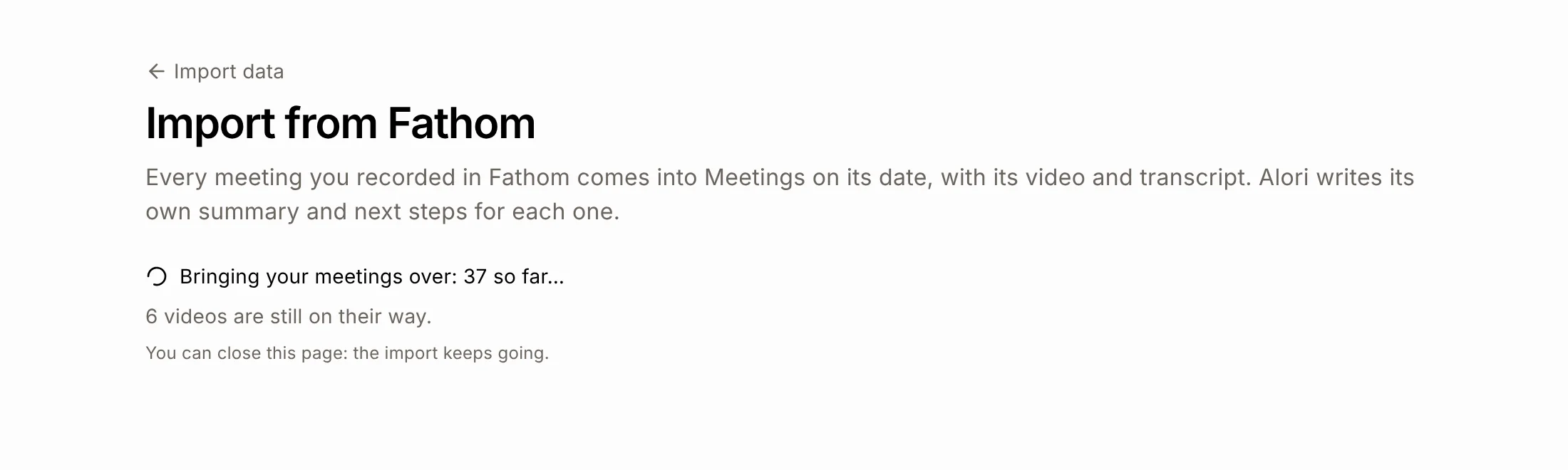
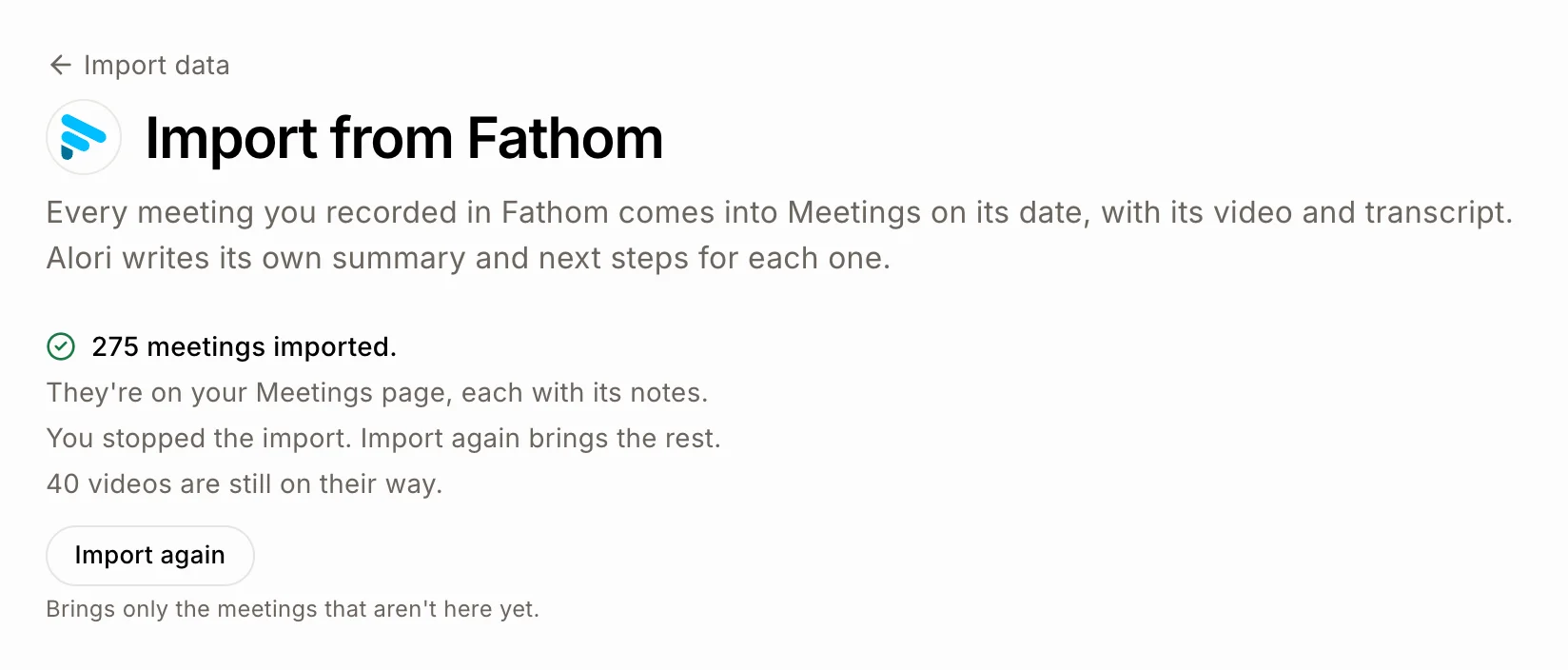
The page shows Bringing your meetings over and how many came so far. Fathom videos come a little after their meeting: the page says how many are still on their way. You can close the page: the import keeps going.
To stop it, click Stop. No new meeting comes over; the ones already here keep their notes, and Fathom videos already on their way still come. Click Import again later to bring the rest.
Step 4: Find your meetings
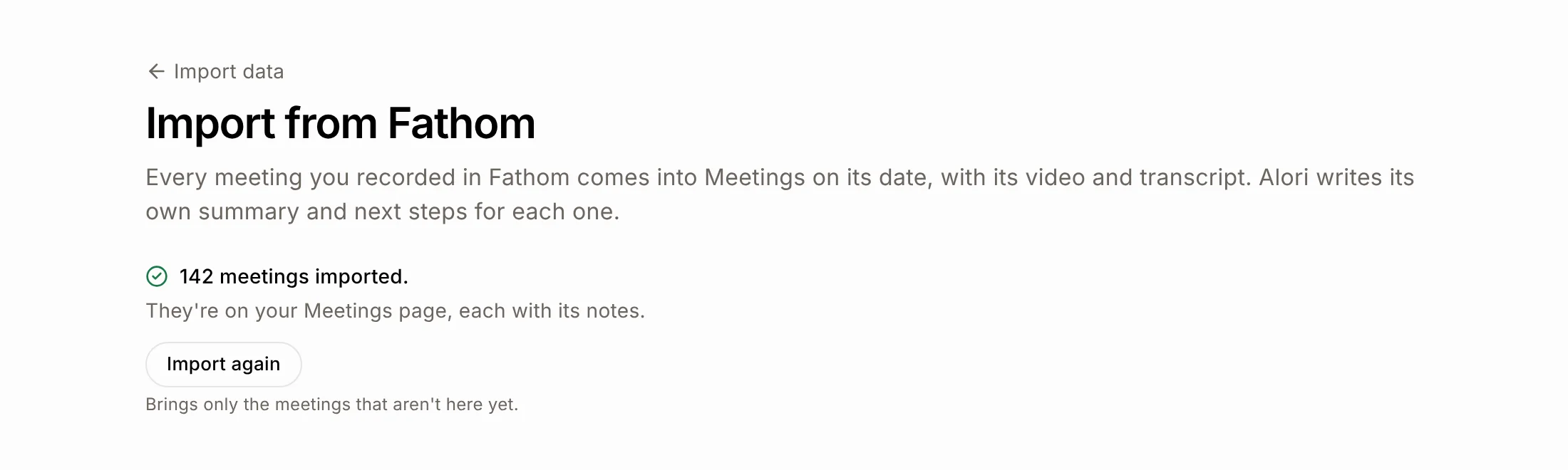
When it's done, the page says how many meetings were imported. They're on your Meetings page, each in the past on its own date, with its transcript and Alori's notes. A meeting goes to the teammate who recorded it (matched by email; the account's first teammate when nobody matches), and to the customer whose email was among the guests. Each meeting is private, like one recorded in Alori: the teammate it went to sees it, and so do teammates who were guests. Sharing in Fathom or Granola doesn't come over; share a meeting from its page.
What comes over
Fathom: each recorded meeting's title, date, length, guests, transcript with who said what, and its video, stored with your meetings.
Granola: each note's title, date, guests and transcript. Granola keeps no recording, so there is no video.
Videos: each Fathom video is stored with your meetings in Alori, so it keeps playing after you leave Fathom.
Alori's notes: Alori reads each transcript and writes its own summary and next steps, like for a meeting recorded in Alori. The summary from Fathom or Granola isn't copied. Notes use credits like a recorded meeting's, and a video is stored like one.
Import again
Click Import again to bring meetings you recorded since. It brings only the meetings that aren't here yet, so nothing comes twice.
If it doesn't work
"That key didn't work. Copy it again and paste it here." Copy the whole key again from Fathom or Granola.
"This key stopped working. Paste a new one." Make a new key and paste it.
"You're out of credits. Add credits, then click Try again." Add credits, then click Try again.
"Your app needs its latest update first. Publish it once, then click Try again." Publish your app, then click Try again.
"The import stopped. Click Try again: meetings already here stay as they are." Click Try again.
"N meetings couldn't come over." Those meetings were tried three times. Click Import again later to try them again.
A meeting with no words (still being transcribed in Fathom) is left for the next import.
No API keys in Granola's Settings? Your Granola plan doesn't give keys: Business and Enterprise do.