How do I add notes to an employee's file?
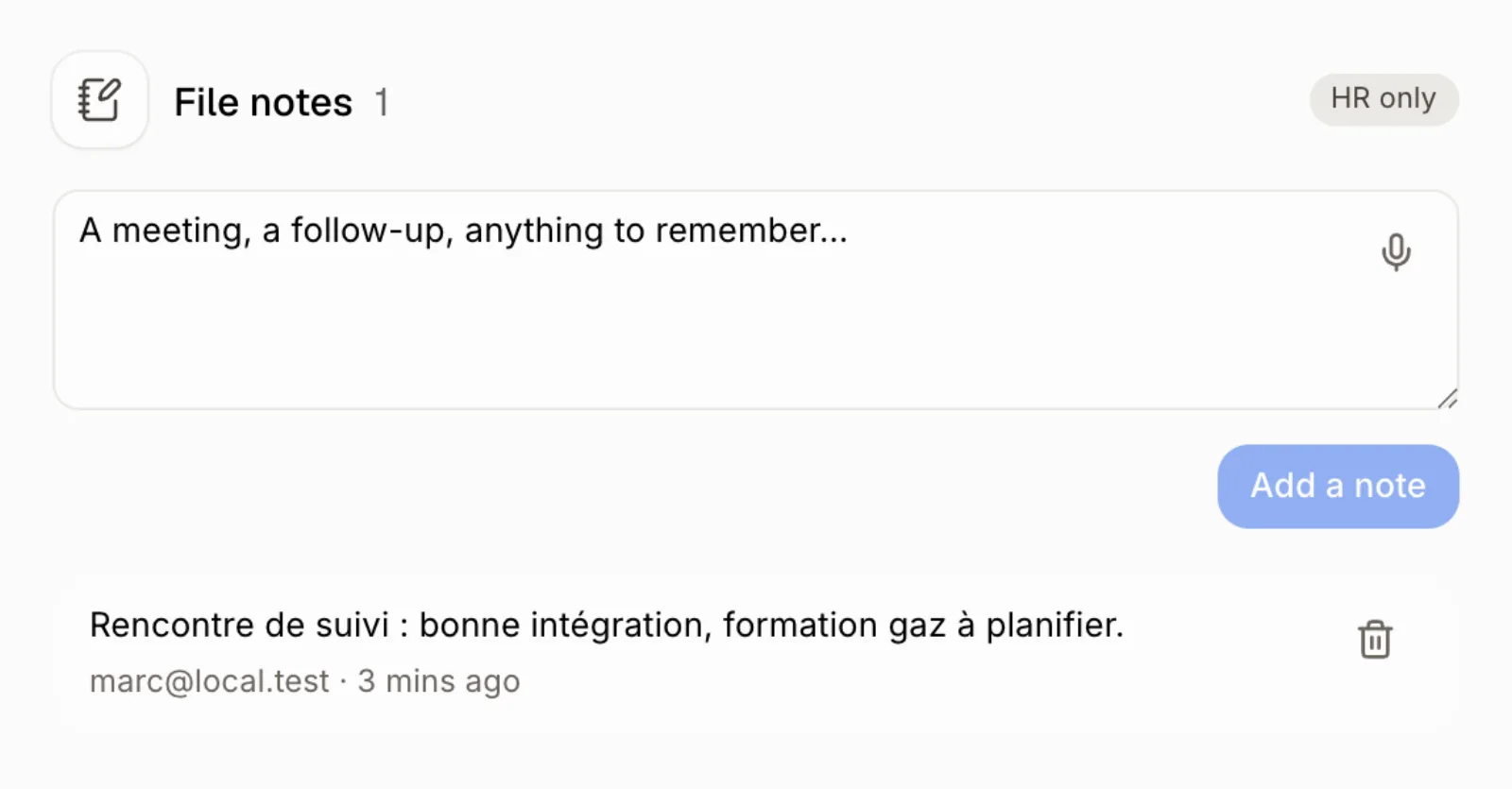
Open the employee, write in File notes and click Add a note. Notes are dated, signed and seen by HR only.
Open the employee and use File notes: write the note (or dictate it with the microphone) and click Add a note. Each note keeps who wrote it and when. Only people who manage employees see them; the employee never does.
Also called: employee notes, meeting notes, follow-up, HR file, notes au dossier, suivi, rencontre, dossier employé
Step 1: Write the note
Go to Employees › Team and open the person. Under Profile, find File notes. Type the note, or click the microphone to dictate it, then click Add a note. The newest note shows first, with its author and how long ago it was written. To remove one of your notes, click the bin beside it.
Click: Employees › Team › the person › File notes › Add a note
Good to know
The note marked Earlier note is the old free-text note from before file notes existed. It stays at the bottom.
You can ask Ask Alori: "Add a note to Julie's file: follow-up meeting went well" or "What's in Marc's file notes?"
If it doesn't work
"Write the note first." The box is empty.
No box to write in. You can see employees but not edit them.