How do I send pictures, videos and files in Team chat?
Paste them in the message box, drop them on it, or click the paperclip. Any kind of file works, up to 10 per message and 100 MB each.
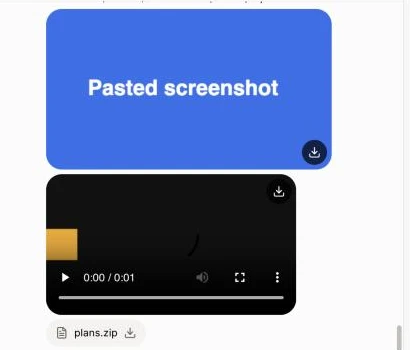
In Team chat, paste a screenshot, a video or any file straight into the message box (⌘V or Ctrl+V), drop it on the box, or click the paperclip. Pictures show in the message, videos play right there, and any other file downloads in one click.
Also called: attachment, upload, screenshot, photo, video, document, pièce jointe, capture d'écran, vidéo, fichier
Any kind of file works: photos, videos, PDFs, spreadsheets, zip files. A message takes up to 10 files, each up to 100 MB.
Step 1: Paste, drop or pick your files
Copy a screenshot or a file and paste it in the message box, or drag files onto the box. Each file shows above the box; click the × on one to take it off.
Click: Team chat › your channel › the message box › paste (⌘V)
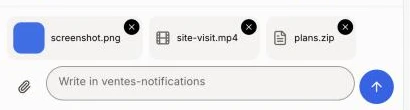
Step 2: Send the message
Add words if you want, then press Enter or click the round send button. Your teammates see the picture, can play the video and download each file.
Click: Send
Good to know
When you copy cells from a spreadsheet, pasting them puts in the words, not a picture of the cells.
To schedule a message for later, send it without files: a scheduled message can't carry them yet.