How do I change or delete several tasks at once?
In Tasks, tick the box next to each task. A bar appears at the bottom: change the status, priority, person, due date or project, or delete them.
Open Tasks and tick the box at the left of each task you want. A dark bar appears at the bottom. Pick a new Status, Priority, Assignee, Due date or Project, and every ticked task changes at once. Click Delete to remove them all.
Also called: bulk edit, select many tasks, multi-select, change several tasks, delete many tasks, sélection multiple, modifier plusieurs tâches, supprimer plusieurs tâches
Step 1: Tick the tasks
Click Tasks in the left menu. In My tasks, All or a project's page, tick the box at the left of each task. Use Search tasks first to find them faster.
Click: Tasks › the box next to a task
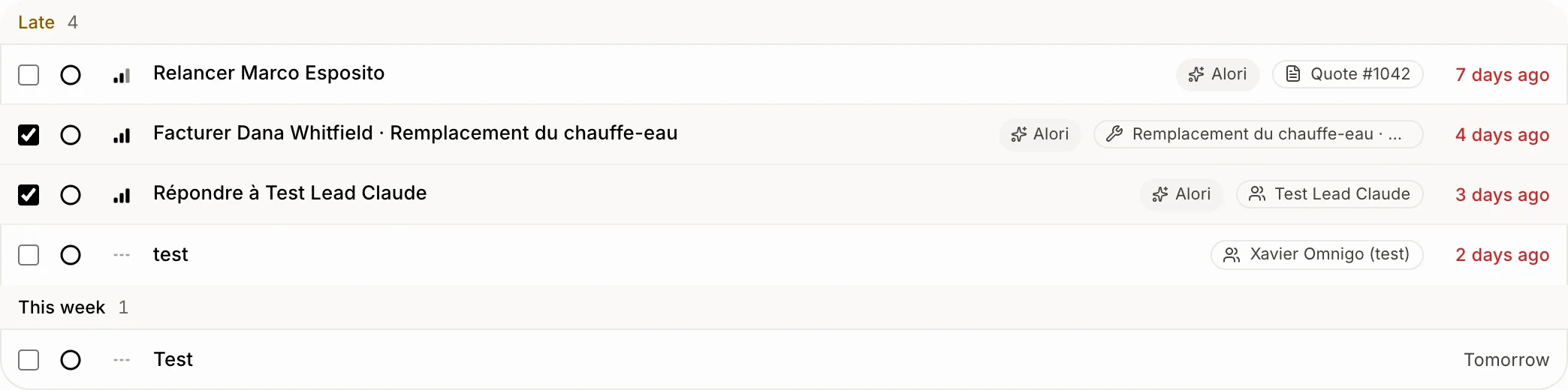
Step 2: Change them together
The bar at the bottom shows how many you picked. Open Status, Priority or Assignee and pick a value. Open Due and pick Today, Tomorrow, In 2 days, Next Monday, In 1 week, In 2 weeks or In 1 month, or Other date… to choose a day on the calendar. Every ticked task changes right away, and you see "… tasks updated."
Click: Due › Next Monday

Step 3: Delete them
Click Delete. Alori asks first: click Remove to delete them for good, with their comments, or Cancel to keep them.
Click: Delete › Remove

Good to know
Click Clear to untick everything.
Project shows when you have projects. Assignee shows when you have a team.
A task Alori made isn't deleted: it's cancelled instead, so it doesn't come back. You see "… made by Alori was cancelled instead."
A task you click opens in a window over the list, so your search and filters stay.
You can also ask Alori: "Push all my late tasks to Friday."
If it doesn't work
I don't see the boxes. Your role can only view tasks. Ask the owner.
"Pick 100 tasks or fewer to change them together." Untick some tasks, then do the rest after.